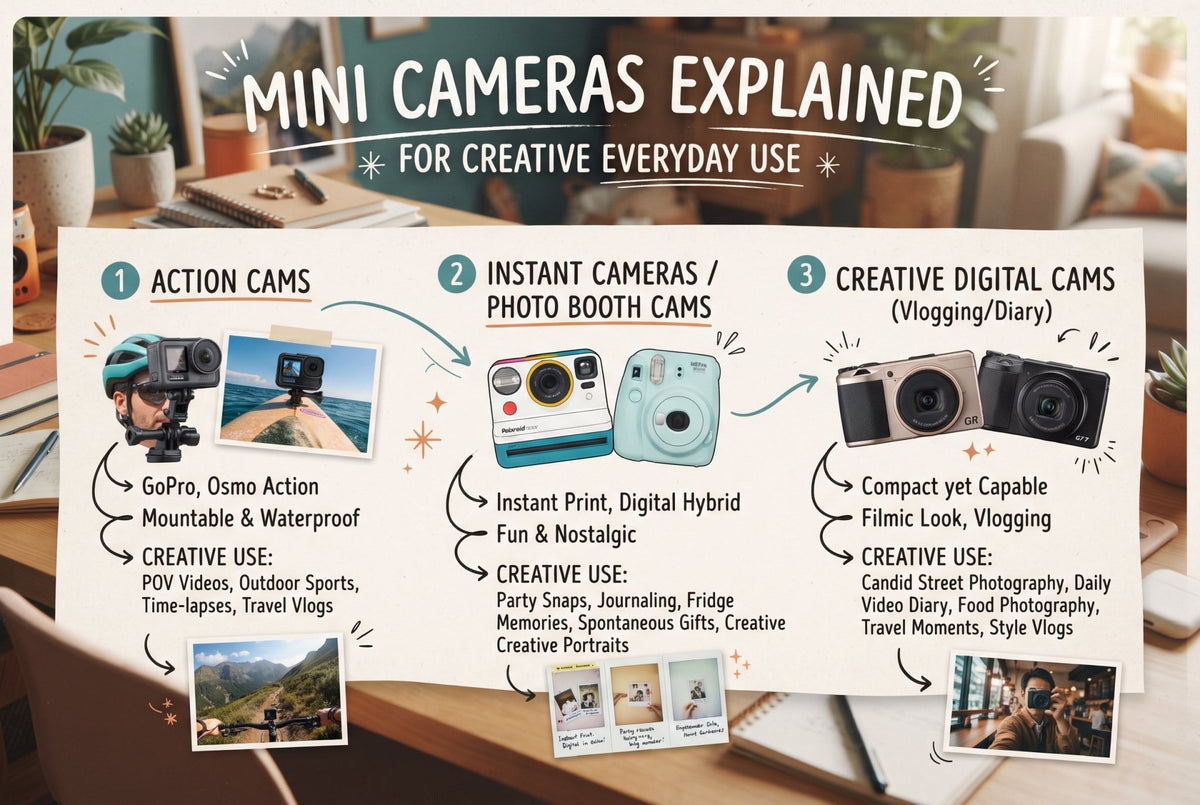
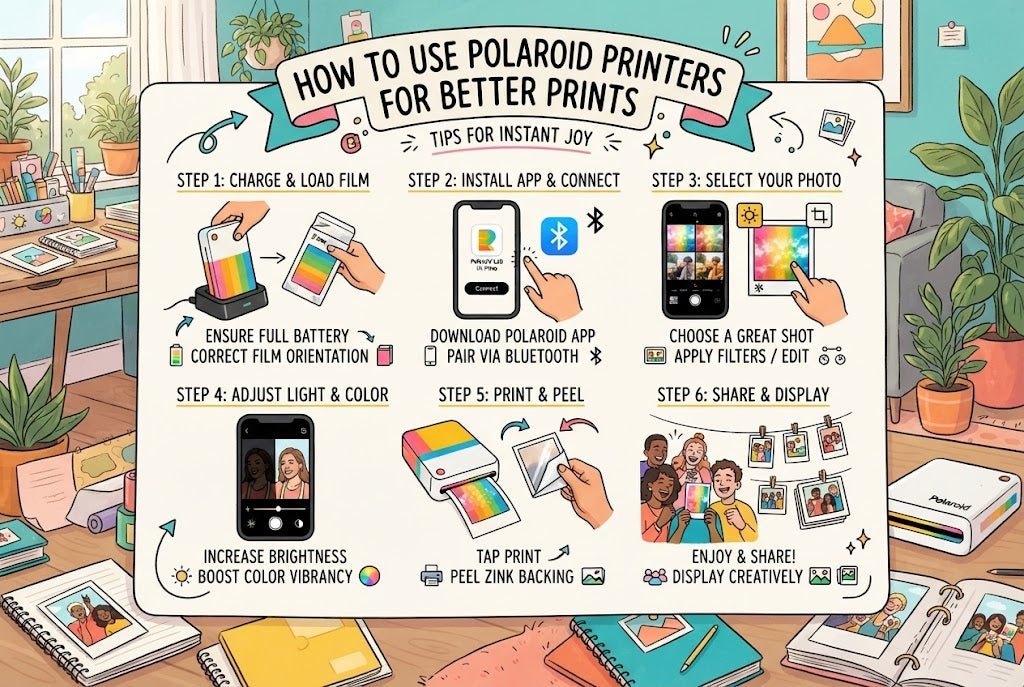
How to Use Polaroid Printers for Better Prints
A photo on your camera roll is easy to forget. A small print tucked into a notebook, clipped to a desk, or handed to a friend has a different kind of presence. Learning how to use Polaroid printers turns the images you already take into physical objects with more personality than another post or backup folder.
The appeal is simple: instant-format printing without carrying an instant camera everywhere. But the best results are not entirely automatic. Your printer model, paper type, image crop, and editing choices all shape the final print. A little intention goes a long way.
Start With the Right Polaroid Hi Print Photo Printer and Paper
Polaroid makes compact printers for different print styles, so begin by identifying your model. The Polaroid Hi-Print produces 2 x 3.5-inch photos as a portable photo printer using dye-sublimation paper cartridges. Its layered printing process gives strong print quality, with smooth color, crisp detail, and sharp results. It is a strong choice for portraits, travel snapshots, and graphic compositions where color matters.
Older or pocket-oriented Polaroid ZIP printers work more like a pocket printer and use ZINK paper, which has color-forming crystals built into each sheet. Compared with rivals like the hp sprocket or an instax printer, the main difference here is the more matte, instant-photo look rather than a glossy finish. The result has a more matte, instant-photo character. ZINK prints are adhesive-backed, making them especially good for journals, planners, lockers, and gift wrapping.
These systems are not interchangeable, so always use authentic paper cartridges designed for your printer model. A Hi-Print needs the correct all-in-one cartridge, while a ZINK printer needs compatible ZINK paper. Buying the right consumable is less glamorous than choosing the printer, but considering film cost, availability, and price can save money as well as frustration.
Keep paper and cartridges sealed until you are ready to use them. Dye-sublimation and ZINK papers are sensitive to extreme heat and humidity, and direct sunlight and prolonged sun exposure can affect print materials over time, so store finished prints in a cool, dry place away from light. If you are packing a printer for a weekend away, carry spare paper in a small pouch rather than leaving it loose at the bottom of a bag.
Different Polaroid models use different media systems instead of traditional ink and photo paper. That range runs from compact formats to the polaroid lab, which uses full-size Polaroid i-Type film, and it matters more than comparisons with canon or other names in the wider photography market.
How to Use Polaroid Printers: Setup and Pairing
Your first print should take only a few minutes. Charge the printer fully with the supplied or compatible USB cable, then switch it on so it is ready to connect to your phone, such as an iPhone. A stable battery level matters because printing draws more power than simply staying connected to your phone.
Install the Polaroid Hi-Print app or the app specified for your particular printer model. Turn on Bluetooth on your phone, open the app, and follow the pairing prompt so you can print directly once pairing is complete. The printer should appear in the app's device list. If it does not, move your phone closer, confirm the printer is awake, and check that it is not already connected to another device. If a job stalls in the Hi-Print app, you can review it and cancel it before retrying.
Load the media carefully. With Hi-Print, place the cartridge into the printer as directed by the markings inside the compartment, then close the cover firmly. With a ZINK printer, load the paper with the blue calibration sheet in the position indicated for your model. That sheet usually feeds through first as part of how the printer prints and prepares the media before your photo prints.
Do not pull on a photo during printing. Hi-Print images move in and out of the printer several times as each color layer is applied. It can look unusual if you are used to a single-pass printer, but it is part of the process. A Polaroid Hi-Print print takes about 1 minute and 20 seconds to finish, so let the cycle complete and the photo emerge on its own. Once it ejects, let it rest flat for a couple of minutes for best results. If you are unsure what the in-and-out motion should look like, watch a short video of the process first.
Choose Images That Work at 2 x 3 Inches
A pocket print asks you to edit digital photos with more discipline than a phone screen does, especially when printing digital photos for a 2 x 3-inch format. At 2 x 3 inches, tiny background details disappear, busy scenes become crowded, and small printers usually produce better results when the image has one clear subject and enough visual separation.
Before printing, choose one clear subject. Close portraits, graphic storefronts, sharply framed coffee cups, or single bright travel details often work better in small pictures than a wide group shot with ten small faces. This is not a limitation. It is a useful creative filter.
The Polaroid app lets you crop and adjust images before sending them to print. Start with the highest-resolution image available, then use the crop tool first, because every other edit should respond to the final composition. Part of that process is to decide what to exclude so the final image keeps its quality at a small size. Check where the app places the image within the 2 x 3-inch frame, especially if you are printing a vertical shot from a phone camera.
Then make restrained adjustments. If an image looks too dark, brighten it slightly before changing anything else. Lift shadows slightly if a face is disappearing into darkness, lower highlights if a bright window is washing out the scene, and add only modest contrast. Heavy filters can look exciting on a bright phone display but become muddy or overly saturated on a small physical print. Digital screens emit light, while instant film absorbs and reflects it, so instant prints naturally lean dark and moody in person. Polaroid Hi-Print prints can also show slight color accuracy shifts, which is why restrained edits and simple, high-contrast photos with clear separation tend to work better.
If the photo includes text, make it large and high contrast. Fine type and pale lettering rarely hold up at this size. For a design-forward look, try a bold date, location, or short caption instead of turning the entire image into a poster.
High-resolution files from a phone or computer usually hold up better this small.
Use the App as a Creative Tool, Not an Afterthought
The most satisfying Polaroid prints tend to feel edited, not merely exported. The app is where a casual snapshot can become a small keepsake. Many Polaroid printer apps offer frames, collages, stickers, text, and simple image controls, which also make them useful for journaling when you want a print that feels personal. These are useful when they support the image rather than compete with it.
A clean white border can make a city scene feel more deliberate. A four-image collage can tell the story of a dinner, a gallery visit, or a quick road trip better than one perfect hero shot, especially when you are printing extras to share with friends. For gifts, add a date or a private line of text directly in the app, or write a short place or note on the border, then print a few copies while the moment is still fresh.
It also pays to print a test version when the image matters as a quick review before making extra copies. This is particularly true for skin tones, low-light shots, and artwork photographed from a screen or sketchbook. Small changes in warmth or brightness can make a meaningful difference. The trade-off is using more paper, but a test print is often less wasteful than producing several versions you do not want to keep.
Get Cleaner Print Quality and Fewer Failed Prints
Most issues with portable photo printers come down to power, connection, or media handling. Keep the printer charged, use the manufacturer-specified paper or cartridge, and place it on a stable surface, such as a table, while it prints. A printer tossed into a crowded tote bag mid-job is more likely to jam or lose its Bluetooth connection.
If a print looks streaky, incomplete, oddly colored, or too dark, stop and check the basics before trying again. Make sure the cartridge or paper is seated correctly, the battery is not low, and the printer has not been exposed to extreme heat or cold so the finished object looks as intended. For ZINK models, confirm that the calibration sheet was loaded and processed correctly. For Hi-Print, allow the full multi-pass cycle to complete.
Bluetooth problems are usually solved by closing and reopening the app, toggling Bluetooth off and on, or restarting the printer. If the app still cannot find your device, remove the old pairing entry from your phone and pair again. Software updates can also improve compatibility, particularly after a phone operating-system update.
Avoid touching the print surface immediately after it comes out. Hi-Print photos have a protective finish, but giving them a moment to settle is still a good habit. Store unused paper flat in a cool, dry place, and keep finished prints in a cool, dry space away from direct sunlight if you want color to stay true.

Make Printing Part of the Moment
A Polaroid printer earns its place when it comes out of the drawer regularly. Keep it near your desk for a rotating moodboard, bring it to a birthday dinner so printing becomes part of the fun, or use it to make place cards, thank-you notes, small travel albums, or a print that decorates a desk or small space. Ongoing cost matters too, especially when Polaroid Hi-Print film costs $20 for 20 prints. The format is compact enough to be playful and polished enough to feel considered.
Guests can sign a print or a guest-book page, and no one needs to be professional photographers to enjoy it. If you are comparing options for frequent use, Instax film is widely available at drugstores and other retail stores, and its prints usually stay more consistent across multiple prints.
For urban creatives, the real pleasure is choosing what deserves to become tangible. Not every photo needs to be printed; the right one gets more life beyond the phone. A compact printer may look cute, but it is more useful when it is easy to bring along and actually use often. It can become a visual note to yourself, a detail in a scrapbook, or an unexpected extra inside a gift. That is the analog joy: a quick image, made physical, with a reason to stay.